Guide
How Aspect Ratio Affects Desktop Wallpapers
Why a wallpaper can look cropped or stretched even at the right resolution, and how to plan around it.
What aspect ratio means
The aspect ratio of a picture is the relationship between its width and its height. A 1920 × 1080 image is 16:9, because dividing both numbers by 120 leaves 16 and 9. Two images can have very different pixel counts and the same ratio: 1920 × 1080, 2560 × 1440 and 3840 × 2160 are all 16:9. Resolution decides how sharp an image is; aspect ratio decides how it is shaped, and a mismatch is what causes unexpected cropping.
Common screen shapes
| Ratio | Typical resolutions | Found on |
|---|---|---|
| 16:9 | 1920 × 1080, 2560 × 1440, 3840 × 2160 | Most monitors and TVs |
| 16:10 | 1920 × 1200, 2560 × 1600, 3840 × 2400 | Many laptops and some monitors |
| 3:2 | 2256 × 1504, 3000 × 2000 | Some two-in-one and productivity laptops |
| 21:9 (approx.) | 2560 × 1080, 3440 × 1440 | Ultrawide monitors |
| 32:9 | 5120 × 1440 | Super ultrawide monitors |
| Tall, around 9:19 | 1080 × 2340 and similar | Phones in portrait |
The so-called 21:9 monitors are not exactly 21:9. A 3440 × 1440 screen is 43:18, close to 21:9 but slightly wider. The exact ratio is rarely important for wallpapers; the point is that you can read the pixel dimensions and compare.
What happens when the shapes do not match
When the image and screen have different ratios, the operating system has to do one of three things:
- Fill or cover: scale the image until it covers the screen and crop the overflow. Nothing is distorted, but part of the picture is lost.
- Fit: scale the image until all of it is visible, leaving empty bars on the sides or the top and bottom.
- Stretch: force the image to the screen's shape, which distorts it.
Fill is the sensible default. How much it removes depends on how different the shapes are.
How much gets cropped
If you fill a screen with a 16:9 wallpaper, the amount cut away is worked out from the two ratios:
| 16:9 wallpaper on... | What is cropped |
|---|---|
| 16:9 screen | Nothing |
| 16:10 screen | About 10% of the width, split between left and right |
| 3:2 screen | About 16% of the width |
| 21:9 screen | About 24% of the height, split between top and bottom |
| 3440 × 1440 screen | About 26% of the height |
| 32:9 screen | Half of the height |
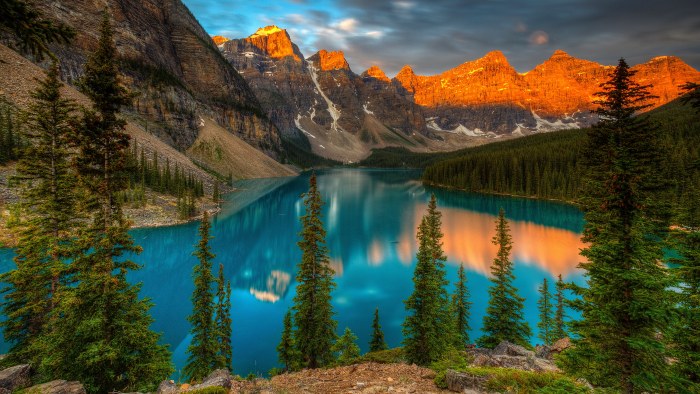
A wallpaper with an important subject near an edge, or a horizon placed low in the frame, can lose it entirely on a different screen shape. Wallpaper pages on VividWall list the aspect ratio of each image so you can check before downloading.
Choosing wallpapers that survive cropping
- Centre the subject, or leave safe margins. Images whose key elements sit in the middle of the frame handle a wide range of screens.
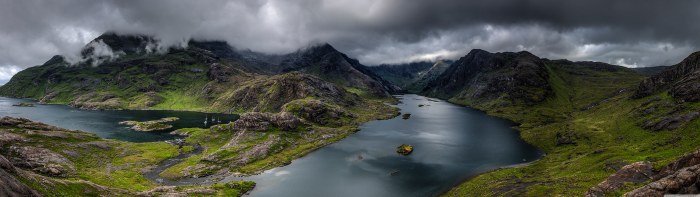
- Prefer extra width for ultrawide. A landscape with open sky or water on both sides adapts to a wide crop more gracefully than a tightly framed portrait of a building.
- Watch the bottom third. Taskbars and docks cover part of the lower edge, and desktop icons occupy the left side by default on Windows.
- Abstract and textured images forgive cropping. With no single focal subject, little is lost when the edges go.
Taking control of the crop
You can avoid automatic cropping by choosing the framing yourself. The Crop & Scale tool on each VividWall wallpaper page lets you pick a target resolution, drag the picture to position it and zoom, then export a version that already has your screen's proportions. The operating system then has nothing left to crop, and the part of the image you care about stays in view. After that, the steps for Windows 11 or macOS apply as usual.
Several monitors and rotated screens
With multiple monitors you can either give each screen a picture that fits its own shape, or span one wide image across all of them, in which case the aspect ratio you need is the combined desktop's. A monitor rotated into portrait follows the same rules turned on its side: choose a tall image whose proportions match the rotated screen.